Your website is live, you pay for hosting, and the phone is quiet. Before you blame the market or the SEO, rule out the cheapest explanation: a setting that tells Google to stay away. It happens most often right after a redesign, and it takes about 15 minutes to check.
How to Tell If Your Contractor Website Is Blocking Google: The Short Answer
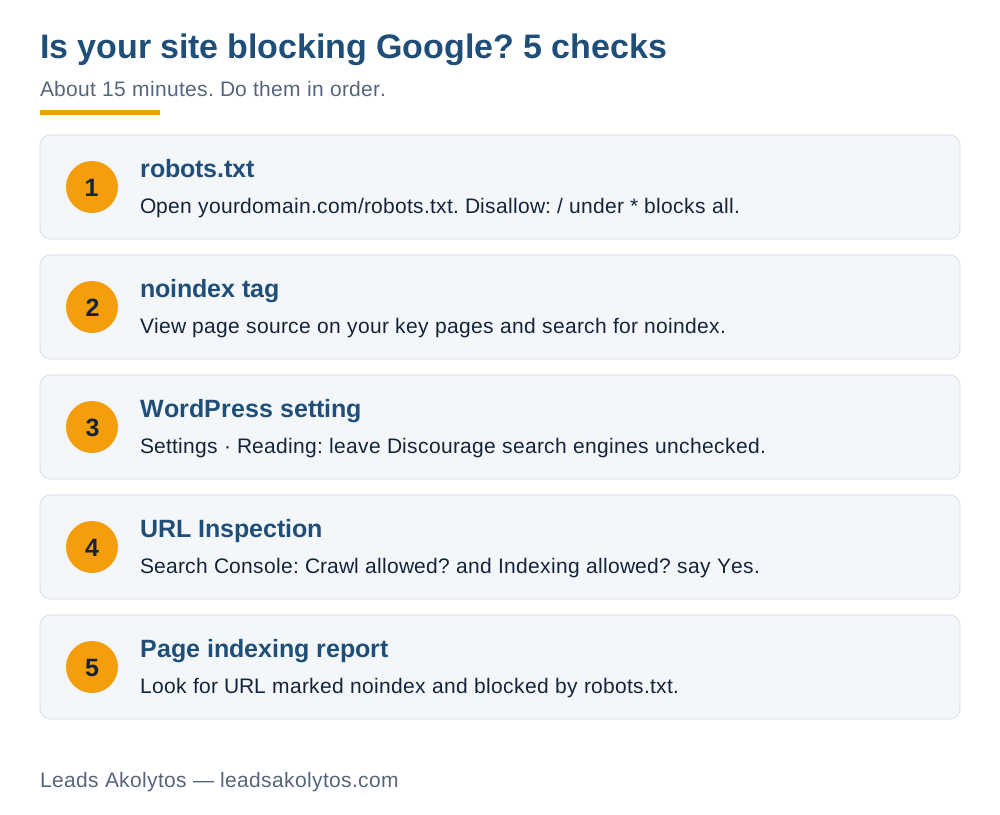
Check three places. First, open yourdomain.com/robots.txt and look for "Disallow: /" under "User-agent: *". Second, view the source of your home page and search for "noindex". Third, if the site runs on WordPress, confirm that "Discourage search engines from indexing this site" is unchecked under Settings, then Reading. If all three are clean, open Google Search Console, paste a service page into URL Inspection and read the line "Indexing allowed?". A "No" there tells you which block is the cause.
Why a Working Site Can Be Invisible
A block is rarely a hack. It is usually a leftover. Developers keep a new site out of Google while they build it, with a setting or a tag. If nobody removes that setting at launch, it ships with the site and Google keeps obeying it. Staging copies, rebuilt pages and a switched-off WordPress option all produce the same symptom: the site looks perfect to you and does not exist to Google.
Search Engine Journal and several agencies describe this as a classic launch mistake, but no independent study measures how often it happens, so treat it as a common cause and not a statistic. The check costs nothing, so run it even if your site is years old. Plugin updates and new "SEO" settings can switch things on later.
Two Different Blocks: robots.txt and noindex
They sound alike and behave differently, and mixing them up is how owners fix the wrong thing.
- robots.txt controls crawling. It tells Google which URLs it may visit. Google says it is not a way to keep a page out of search results: a blocked URL can still appear, without a description, if other pages link to it.
- noindex controls indexing. It is a meta tag in the page head or an X-Robots-Tag HTTP header. When Google reads it, the page is dropped from results, even if other sites link to it.
The trap: for noindex to work, Google must be able to crawl the page. If robots.txt also blocks the page, Google never sees the noindex. So when you remove a noindex, remove any robots.txt block on the same pages first, or Google cannot see that you changed your mind. These facts come from Google's own robots.txt introduction and its guide to blocking indexing.
The Five Checks, in Order
Do these in order. Each one takes a few minutes and needs no technical background. Keep a note of what you find, since you may hand it to whoever runs your site.
1. Read your robots.txt
Type yourdomain.com/robots.txt into a browser. A healthy file for a small contractor site is short. You are looking for one pattern:
- "User-agent: *" followed by "Disallow: /" means every crawler is told to skip the whole site. That is the one that needs to go.
- Lines that disallow only admin or cart folders are normal.
- No file at all is also fine. Google then crawls everything.
If you see a full block, change "Disallow: /" to nothing after the colon, or delete the file, then save and reload to confirm.
2. Look for a noindex tag on your key pages
Open your home page and your top service page. Right-click, choose "View page source", then search the text for "noindex". You are looking for a line like this in the head of the page:
- meta name="robots" content="noindex"
- or the same with name="googlebot"
Check more than the home page. A plugin or a page-level setting can noindex individual service pages and leave the home page clean. Check the pages that earn you calls: your main service pages and your city pages.
3. Check the WordPress visibility setting
On WordPress, go to Settings, then Reading, and find "Search engine visibility". If "Discourage search engines from indexing this site" is checked, WordPress adds a noindex, nofollow tag to your pages. The WordPress documentation describes this, and notes the setting asks search engines to stay away rather than blocking visitors. Your site loads normally for you, which is why nobody notices.
If you do not use WordPress, ask whoever built the site for the equivalent setting. Most site builders and SEO plugins have one switch for it.
4. Ask Google directly with URL Inspection
The first three checks read your site the way you do. This one shows what Google saw. In Google Search Console, paste a service page address into the search bar at the top. The result reports whether the page is on Google, and it separates the two blocks above:
- "Crawl allowed?" tells you whether robots.txt lets Google in.
- "Indexing allowed?" tells you whether a noindex tag stops it.
- "Page fetch" tells you whether Google could load the page from your server at all.
Google's URL Inspection documentation points out that the first view shows the last indexed copy, not the live page. After you fix something, use "Test live URL" to confirm the fix worked before waiting for Google to return. If you have never set up Search Console, verify your site first. It is free and it is the only way to see this data.
5. Read the Page indexing report for the whole site
URL Inspection checks one page. The Page indexing report checks all of them. Open it in Search Console and look for these labels, which Google's Page indexing help page defines:
- "URL marked 'noindex'": Google found a noindex directive and skipped the page.
- "URL blocked by robots.txt": Google was not allowed to crawl it.
- "Discovered - currently not indexed": Google knows the page but has not crawled it yet.
- "Crawled - currently not indexed": Google crawled it and chose not to index it. Google calls this common and not always a problem.
A long list of your service pages under the first two labels is the answer you were looking for. The last two are not blocks. They point to a different problem: pages that are thin, duplicated or new.
What About Searching site:yourdomain.com?
It is a quick first look, and Google's starter guide mentions it. Search "site:yourdomain.com" and see whether your pages appear. Treat it as a hint, not proof. Google's own page on the operator says the results are not guaranteed to be complete. If your page is missing, that does not tell you why. If it shows up, you are at least in the index. Use URL Inspection when you need the reason.
What to Do When You Find a Block
Fix the block, then tell Google it changed. In this order:
- Remove the robots.txt "Disallow: /" first, if there is one.
- Remove the noindex tag or uncheck the WordPress setting.
- Run "Test live URL" on a key page and confirm it now reads as available to Google.
- Submit your sitemap in Search Console so Google finds all pages, not just the one you tested.
- Use "Request indexing" on your top few service pages. Google says a request does not guarantee a result and each property has a daily limit, so do not spend it on every page.
- Click "Validate fix" on the report issue. Google says validation typically takes up to about two weeks.
Expect days to a couple of weeks for recovery, not hours. Google says indexing can take up to a week or two even for a single page you request. If you also changed your site recently, our guide on how long contractor SEO takes shows what to expect and when.
How to Keep a Staging Site Out of Google Without Risking the Live Site
Many blocks start with a good intention. If you are building or redesigning, ask your developer to protect the staging copy with a password, which Google recommends over relying on robots.txt. A password keeps strangers out whether they are crawlers or customers. A robots rule is easier to carry over to the live site by accident.
Then put one line in your launch checklist: on launch day, open the live robots.txt, view the source of the home page and run URL Inspection on a service page. That takes five minutes. Our website redesign contract checklist lists what to put in writing before the work starts, and the redesign cost guide covers what you are paying for.
If Nothing Is Blocked, Look Here Next
A clean result is good news and a different problem. Google can see your pages, so the quiet phone comes from somewhere else:
- Pages that Google crawled but did not index: usually thin, duplicated or very similar service pages.
- Pages that are indexed but sit past page two for the searches that matter.
- Rankings that are fine while calls are not. See ranking well but not getting calls from Google.
- A slow or broken phone experience. Start with our notes on site speed and Google's page experience metrics.
If you were also told to block or allow AI crawlers, that is a separate question with its own rules. Our post on llms.txt and AI visibility covers it. To catch other leaks on the same site, the free website lead audit checks your page in a few minutes.
Frequently Asked Questions
How do I know if my website is blocking Google?
Open yourdomain.com/robots.txt and look for "Disallow: /" under "User-agent: *". Then view your home page source and search for "noindex". In Google Search Console, URL Inspection shows "Crawl allowed?" and "Indexing allowed?" for any page you paste in.
Can robots.txt keep my page out of Google?
Not reliably. Google says robots.txt is not a mechanism for keeping a page out of search, and a blocked URL can still appear if other pages link to it. To keep a page out, Google recommends a noindex tag or password protection.
Why did my site disappear from Google after a redesign?
A common cause is a block carried over from the build stage, such as a noindex tag, a robots.txt rule or a WordPress setting. It is not the only cause. Changed URLs without redirects can also drop pages, so check blocks first, then redirects.
How long until Google shows my site again after I remove a block?
Google says indexing can take up to a week or two for a requested page, and report validation typically takes up to about two weeks. Submitting a sitemap and requesting indexing for your top pages helps, though neither is guaranteed.
Does the WordPress "Discourage search engines" box really block Google?
It adds a noindex, nofollow tag to your pages, according to WordPress documentation. It asks search engines to skip the site, and Google follows noindex, so for practical purposes it removes you.
Facts in this article were checked on their sources on November 17, 2026: Google's robots.txt introduction, its guide to blocking indexing, the Search Console Page indexing and URL Inspection help pages, Google's SEO starter guide and the WordPress Reading Settings documentation.
Want a Second Look?
You can run all five checks yourself in one sitting. If you would rather go through the results with someone, Leads Akolytos offers a free 30-minute strategy call; we work only with home service contractors, with no setup fees and no long-term contracts. You can book a time here.
If you'd like one practical idea like this in your inbox each month, get The Leads Akolytos Monthly: one email a month, unsubscribe any time.
Want this handled for you?
We do this work for home service contractors every day, month-to-month, with no contracts. Book a free 30-minute call and we'll show you where you stand on Google.
Book my free call