Everyone tells you to "check Search Console," and nobody tells you how. Your web developer may have set it up under their own login, or nobody did. Without it, you are guessing why the phone is quiet. With it, you see which Google searches show your site, which pages Google skipped, and which problems it flagged. It is free and takes about 30 minutes to set up.
How to Set Up Google Search Console for a Contractor Website: The Short Answer
Sign in at search.google.com/search-console with the Google account you want to own the data. Add your site as a property, prove you own it, then submit your sitemap. After that, spend 15 minutes a month on five reports: Page indexing, Performance, Sitemaps, Core Web Vitals and URL Inspection. Use a Google account you control, not your developer's or an agency's, so you never lose access to your own history.
What Search Console Does for Your Business
Search Console is Google's report on how your site performs in Google Search. It does not measure what visitors do after they land. That is a different tool, Google Analytics. Search Console covers the step before: whether Google can find and index your pages, and what people typed when your site appeared.
For a contractor, three answers matter:
- Is Google indexing my service pages? If not, they cannot bring a call.
- Which searches show my site, and do people click? That tells you which pages to rewrite first.
- Did something break? Google's About page says Search Console can alert you to indexing, spam and other issues.
Step 1: Add Your Site as a Property
Google offers two property types, per its Search Console help.
- Domain property (yourcompany.com): covers every subdomain, http and https, and all paths. Verification is by DNS record only.
- URL-prefix property (https://yourcompany.com/): covers only URLs that start with that exact address. You need a separate property for each protocol and subdomain.
Which one? A Domain property gives you the full picture, including a leftover www or http version. But you need access to your domain registrar's DNS settings, and many contractors do not know who holds that login. A URL-prefix property verifies in minutes with an HTML tag, an HTML file, Google Analytics or Google Tag Manager. If DNS access is a hassle today, start with URL-prefix and add the Domain property later.
Step 2: Prove You Own It
Google needs proof before it shows you data. Pick one method:
- HTML tag: paste a short line into your home page's head section. A web developer or your site builder's SEO settings can do this.
- HTML file: upload one file Google gives you to your site's root.
- Google Analytics or Tag Manager: works if that code is already on your site and your Google account can edit it.
- DNS record: required for a Domain property. You add one record at your domain provider.
Two warnings from Google's help page. First, do not delete the tag, file or record afterward. Removing the HTML file costs you verification, and Google tells you to leave the DNS record in place to stay verified. Second, Google suggests adding more than one method in case one fails. That matters when a redesign wipes out the head section of your pages.
If you cannot verify, ask whoever already owns the property to add you as a user. That is common when a developer or a past agency set it up. Ask now, while they are still answering email.
Step 3: Submit Your Sitemap
A sitemap is a file that lists the pages you want Google to know about. Most site builders create one for you, usually at yourcompany.com/sitemap.xml. To submit it:
- Open yourcompany.com/sitemap.xml in a browser and confirm it loads.
- In Search Console, open Sitemaps.
- Paste the address into "Add a new sitemap."
- Click Submit.
You need owner permission on the property to do this. Then read the status. "Success" means Google fetched it without errors. "Has errors" means Google fetched it but found problems, though it still queues the URLs it could read. "Couldn't fetch" means the file could not be retrieved at all. Google retries fetch failures for a few days and then stops, so fix a failure rather than wait it out.
Note what the report cannot tell you. The "discovered pages" count is the number of URLs Google read from the file. It is not a promise they will be crawled or indexed.
The 15-Minute Monthly Check
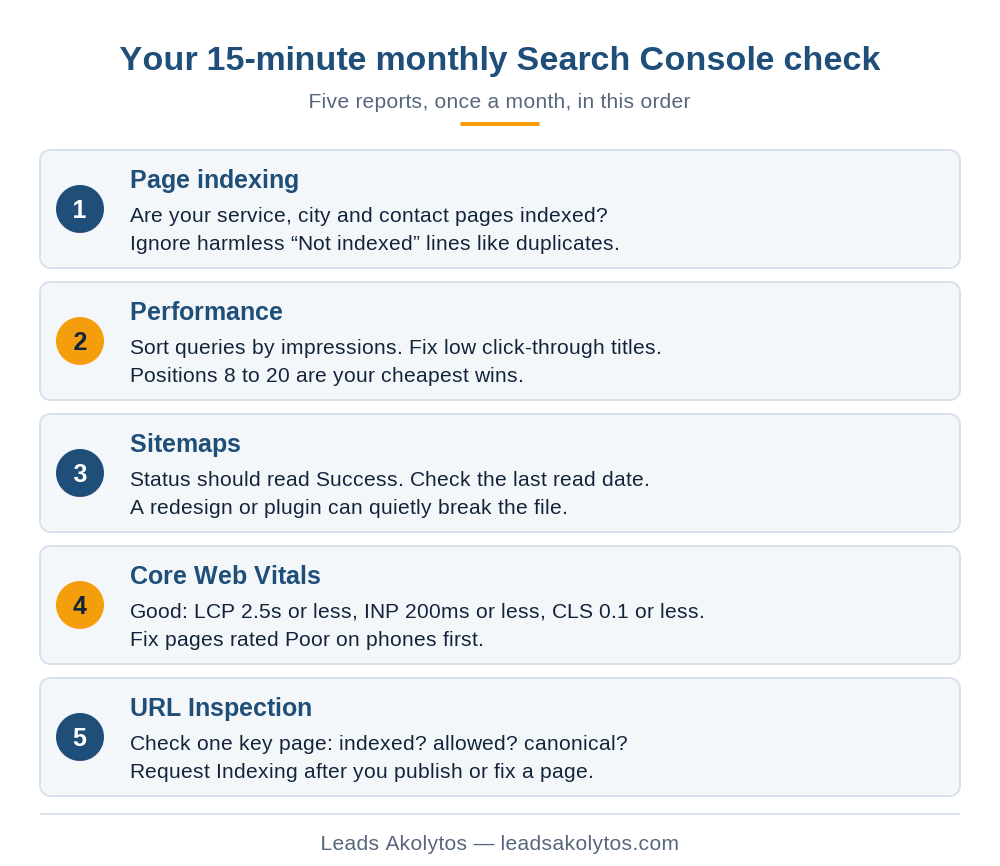
Search Console fills with data fast, and most of it will not change what you do. Look at five reports, once a month, in this order.
1. Page indexing: are my money pages in?
This report sorts your URLs into Indexed and Not indexed, with a reason for each exclusion: blocked by robots.txt, a noindex tag, a 404, "Crawled - currently not indexed," a duplicate, and others. Do not panic over a long "Not indexed" list. Google says not to expect every URL on a site to be indexed, and non-indexed URLs can be fine. Your goal is narrower: every service page, city page and contact page should be indexed. Scan the list for those. If one is blocked by noindex or robots.txt, our guide to checking if your site is blocking Google walks through the fix.
2. Performance: what are people searching?
This is the report owners use most. It shows four numbers: clicks (times someone clicked through to your site), impressions (times your site appeared in results), click-through rate (clicks divided by impressions) and average position. The default view covers the past three months.
Read it like a work order:
- Sort the Queries tab by impressions. Which searches show your site?
- Find pages with high impressions and a low click-through rate. Rewrite the title and description so they match what that searcher wants.
- Find queries where you sit around positions 8 to 20. A fuller answer on that page, plus links from your other pages, is the cheapest move you have.
- Watch for brand-name searches only. If all your clicks come from people typing your company name, Google is not yet sending you new customers. Our guide on how to pick SEO keywords covers what to write next.
Average position is an average across searches, so a single number can hide a lot. Use it to compare month against month, not to judge one query.
3. Sitemaps: still a green "Success"?
Open it, confirm the status, and check the last read date. A redesign or a plugin change can break the file without telling you. If your clicks dropped after a rebuild, go straight here and to Page indexing; why traffic drops after a redesign explains the likely causes.
4. Core Web Vitals: is the site slow for phones?
The report groups your pages by device and rates them Good, Needs improvement or Poor on three measures. Google's thresholds: Largest Contentful Paint at or under 2.5 seconds is good and over 4 seconds is poor. Interaction to Next Paint at or under 200 milliseconds is good and over 500 is poor. Cumulative Layout Shift at or under 0.1 is good and over 0.25 is poor. Only indexed pages appear, and the data comes from real visitors, so a small site may show little. For the fix list, read Core Web Vitals for contractor websites, and run the free website speed test to check how fast your site loads on a phone in 30 seconds.
5. URL Inspection: what does Google see on this page?
Paste any page's address into the bar at the top. You get its indexing status, the last crawl date, whether indexing is allowed, and which canonical address Google chose. After you publish a new service page or fix an old one, click Request Indexing. Google says this typically takes about a day but can take longer, and it does not guarantee indexing. There is a daily limit, so save it for your most valuable pages and rely on the sitemap for the rest.
Insights and Alerts: Do You Need Them?
Google also offers Search Console Insights, a simplified overview with clicks, impressions, top content and top queries. It suits owners who want a quick read. The full reports above are where the actions come from. Make sure the Google account you used is one whose email you read, so alerts reach you.
Four Mistakes That Waste the Tool
- Letting a developer own the account. Make yourself the owner and add them as a user.
- Deleting the verification tag during a redesign. You lose access.
- Chasing every "Not indexed" line. Only your service, city and contact pages need to be in.
- Never opening it. A report you check monthly catches problems in weeks, not quarters.
Frequently Asked Questions
Is Google Search Console free?
Yes. Google provides it at no charge. You only need a Google account and the ability to verify your site.
How long until data shows up?
Google starts collecting data when anyone adds the property, even before verification. Reports can still take time to fill in, so do not judge it on day one.
Should I pick a Domain or a URL-prefix property?
Domain covers every version of your address but needs DNS verification. URL-prefix is quicker and covers one exact address. Many small contractors start with URL-prefix and add Domain later.
What is the difference between Search Console and Google Analytics?
Search Console shows how your site appears in Google Search before the click. Analytics shows what visitors do after they arrive. You want both, but Search Console is the one that tells you whether Google can see your pages.
Why are some of my pages "Not indexed"?
Often for harmless reasons, such as duplicates or redirects. Google says not every URL needs to be indexed. Worry only when a page that should bring calls is on the list.
Facts in this article were checked on Google's Search Console Help pages on November 23, 2026: verifying site ownership, adding a property, the Sitemaps report, the Page indexing report, the Performance report, the URL Inspection tool, the Core Web Vitals report and About Search Console.
Want a Second Look?
You can set this up yourself in an afternoon. If you would rather go through your first reports with someone, Leads Akolytos offers a free 30-minute strategy call; we work only with home service contractors, with no setup fees and no long-term contracts. You can book a time here.
If you'd like one practical idea like this in your inbox each month, get The Leads Akolytos Monthly: one email a month, unsubscribe any time.
Want this handled for you?
We do this work for home service contractors every day, month-to-month, with no contracts. Book a free 30-minute call and we'll show you where you stand on Google.
Book my free call